HostBill's slick technology covers all aspects of eCommerce website, from setting customer signup options, configuring product’s options, picking addons, payment methods, applying proper taxes, applying promo codes and much more.
Learn more Download Brochure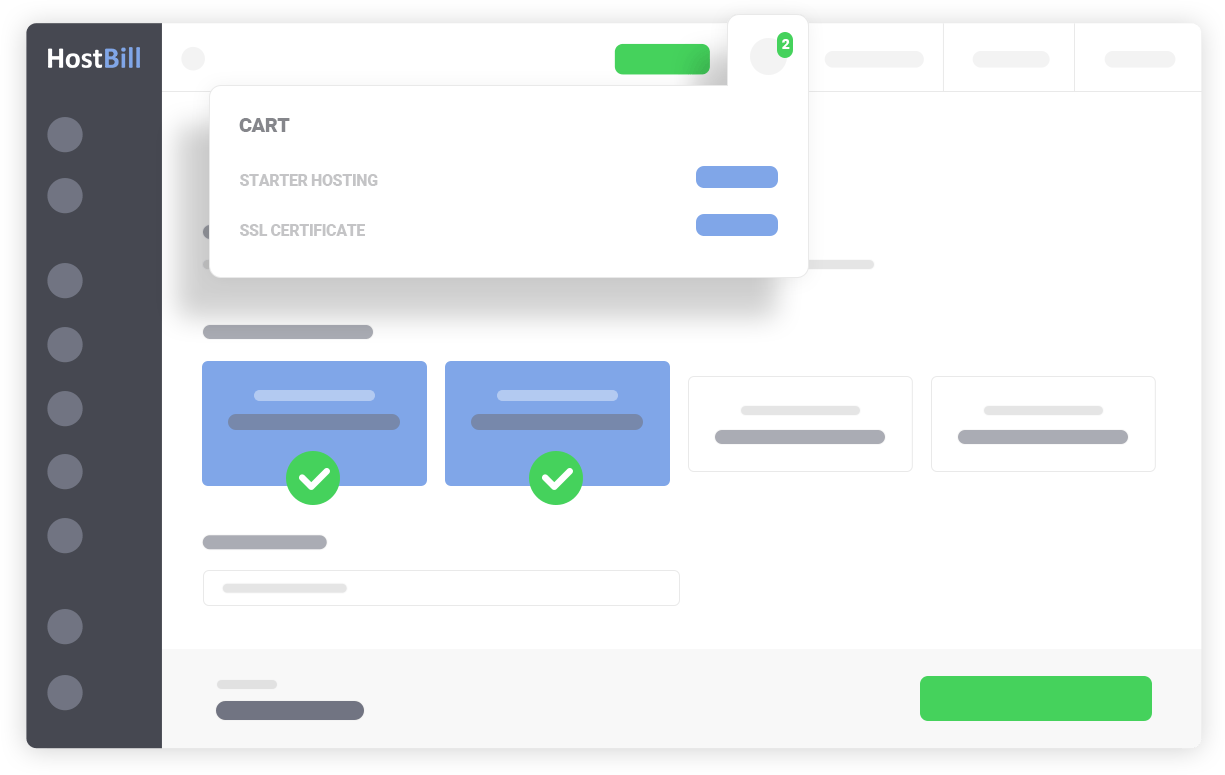
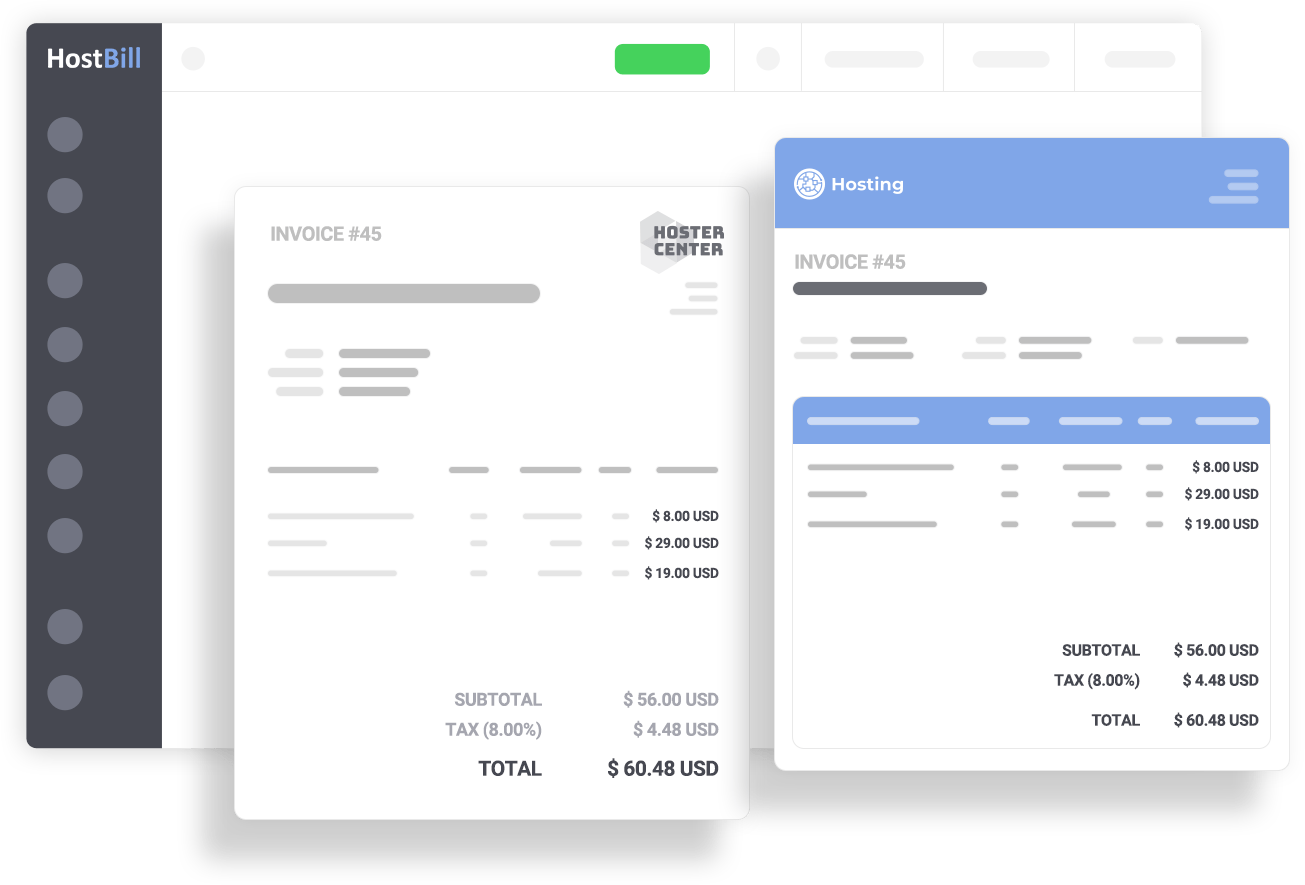
Hostbill will automate all of your billing operations: from generating and sending a beautiful PDF invoice at scheduled periods, notifying both your staff and the customers, sending reminders when needed to collecting payment.
Learn more Download BrochureHostBill takes care of your hosting service lifecycle from signup to termination and ensures all your customers resources are automatically provisioned on your control panel. As hosting account would most likely require domain linked – HostBill got you covered here as well making domain registration or transfer process quick and simple.
Learn more Download Brochure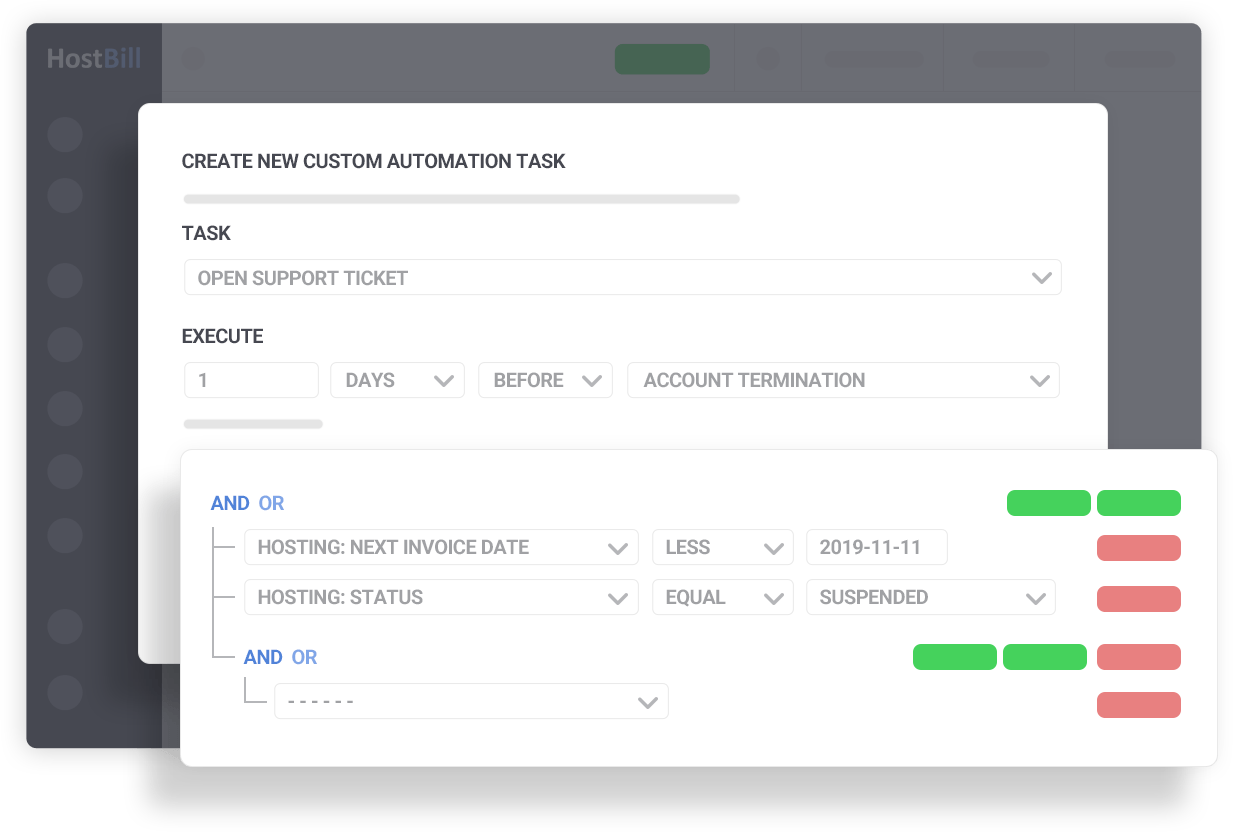
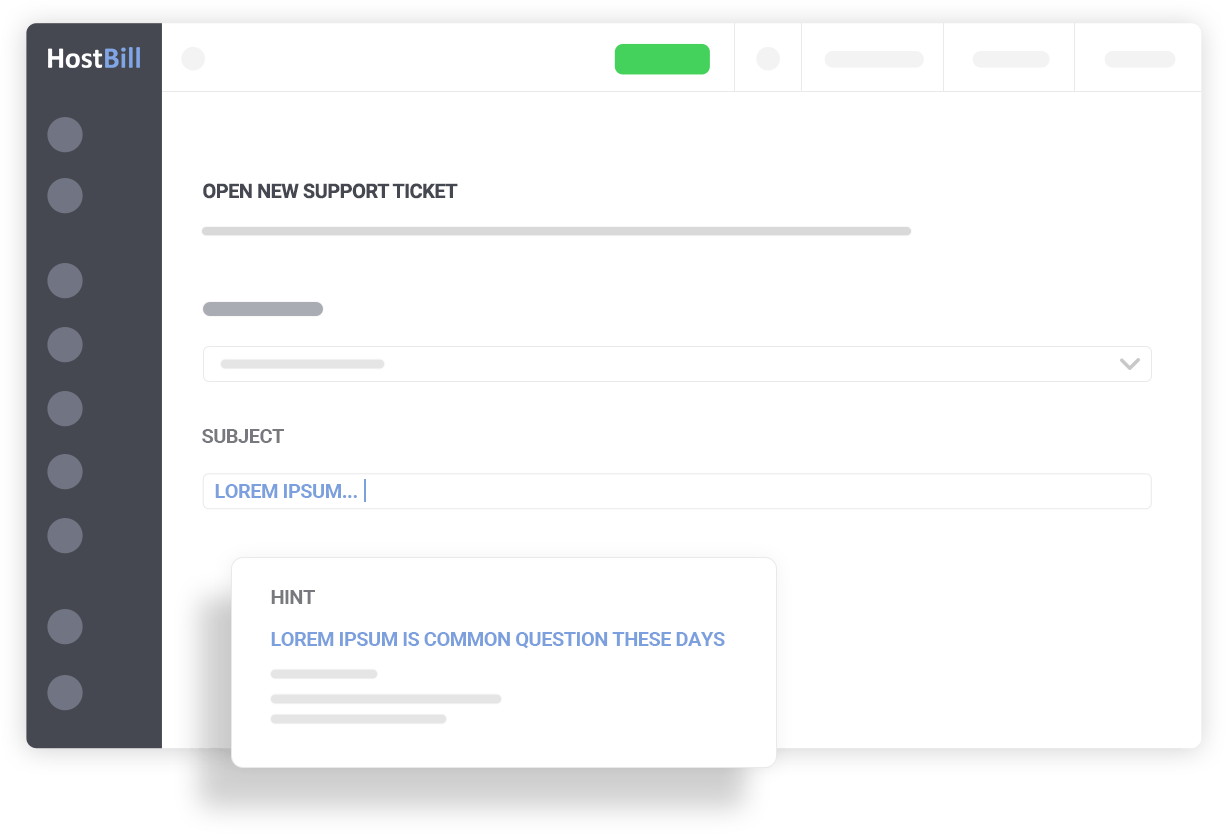
As a central point of your business HostBill keeps track of all crucial information about your customers and your interactions. Keep your contact organized and give your sales and support team full visibility of customer orders, statuses, support cases thanks to HostBill built-in customer management capabilities and a variety of support tools.
Learn more Download BrochureAllow your customers to manage all vitals aspects of all of their services through well-designed and easy to navigate client panel that HostBill provides, while still keeping your branding policy intact. Deliver exceptional customer service through range of tools and build a self-service support site where your customers could easily find solutions by themselves.
Learn more Download Brochure
HostBill provides you with the choice of over 500 inhouse-built integrations with various control panels, plugins, domain registrars, payment gateways, client portals and orderpages, that enable you to jump into new markets and service offerings without the need for external integrators. Focus on your business and choose what’s best for it.
Learn moreWe moved over to HostBill about 1 year ago & have never looked back. HostBill has helped us progress our business to a point where a lot of tasks are now automated, allowing us to focus on communication & supporting our services